- CameraController interception module takes photos and records video of activity at the computer (if there is a connected or built-in web camera).
- MicrophoneController interception module is used to record employee conversations in office or on business trips, connect to user workstation in real time. Voice is recorded with the help of any microphone connected to workstation (headset, laptop, webcam, etc.).
- KeyLogger interception module is used to intercept keystrokes and combinations of keystrokes in various applications, as well as the clipboard.
- MonitorController interception module is used to: Take screenshots and record video of activity in screens Layer watermarks on screenshots and video Connect to user endpoints in real time to monitor information displayed on screens.
- UEBA: AI-driven behavioral analysis enables real-time detection of insider threats and abnormal user activity that may put sensitive data at risk.
Livetime monitoring:
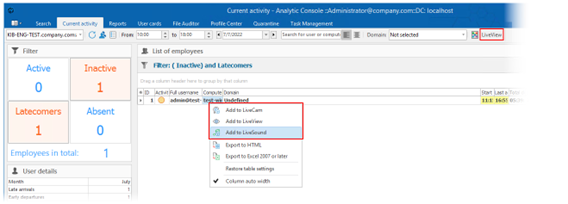
To go to the modes of real-time control, click the LiveView button or use the context menu commands. To monitor a user in real time, select the user in the list and execute the context menu commands
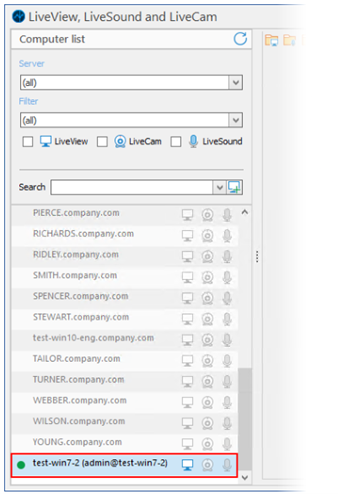
- The window LiveView, LiveSound and LiveCam will open.
- The pane Computer list is used to display and filter workstations. To refresh the data, click the button . The pane can be hidden/shown on the splitter click.
- In the drop-down list Server, you can change the EndpointController server and the database containing the list workstations. The filter (all) allows displaying all LAN workstations regardless of the server.
- In the drop-down list Filter, select one of the three modes of network structure display:
- All: list of all computers.
- Only computers with agents: list of computers with installed agent.
- Only laptops: list of laptops.
- Select the checkbox LiveView, LiveCam and LiveSound to display only the computers with installed MonitorController, CameraController and MicrophoneController correspondingly.
- For a quick search of computer in the list and its addition to LiveView, enter a computer name in the Search field and click the button .
- Inactive computers or computers without running agent are highlighted in gray. Select a computer to monitor and click the corresponding icon in the computer line to start real-time monitoring:
- To enable LiveView (or double-click the computer in the list).
- To enable LiveCam.
- To enable LiveSound.