PAM Feature 01
Role Based Administrator
Structured access, streamlined control, and assured compliance — ensuring secure and efficient control over critical systems
Role-Based Administrator (RBA) is a structured cybersecurity access control model that manages system permissions by aligning them with predefined roles within an organization. RBA focuses on scalability and administrative efficiency by associating permissions with functional roles rather than individual user identities.
RBA Access Control Features
- Granular privilege assignment – Access rights are tailored to specific roles, groups, or applications.
- Active mapping – User groups can be mapped to account groups for streamlined provisioning.
- Approval workflows – Privileged actions can require multi-level approvals, ensuring accountability.
Example Roles — How It Works
- Define roles — Admin roles are created based on job responsibilities.
Examples: Security Admin, System Admin, Auditor. - Assign permissions to roles — Each role is configured with specific privileges such as:
- Accessing password vaults
- Retrieving privileged credentials
- Managing policies
- Viewing session recordings
- Assign users to roles — Users are added to the appropriate role. Their access automatically follows the permissions defined for that role.
| Role | Access Permissions |
|---|---|
| Security Administrator | Manage policies, approve access requests |
| System Administrator | Access server and infrastructure |
| Database Administrator | Access database and DB Credential |
| Password Administrator | Manage and rotate credentials, cannot view session logs |
| Auditor | View logs and reports only |
| User | Only access the assets they are assigned to for their daily tasks |
| Custom Role | Create granular roles for specific teams |
Centralized Policy Management
Allows administrators to create, manage, and enforce security policies from a single console within TKMT Risk Management Module: Privileged Access Management, determining how privileged credentials are accessed and how privileged sessions are controlled.
- Single console – Administrators can define and monitor policies across all endpoints.
- Real-time deployment – Policy updates are instantly applied across devices and workloads.
- Automated enforcement – Policies are applied without manual intervention, reducing human error.
- Audit-ready controls – Administrator rights and privileged sessions are tracked for compliance reporting.
Configure Custom Role
The selection of a custom user role or a predefined system role depends on the user’s required responsibilities and the information that should be accessible within the platform.
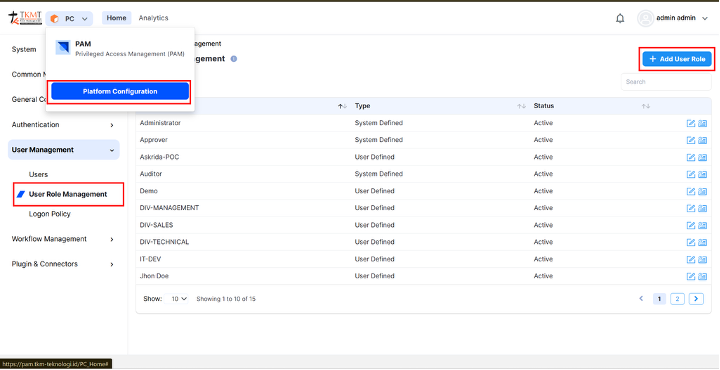
- Log in to the PAM and select Platform Configuration from the product navigator.
- Under the User Management section, navigate to User Role Management.
- Click + Add a New Role.

Click the + Add a New Role button to create a new role
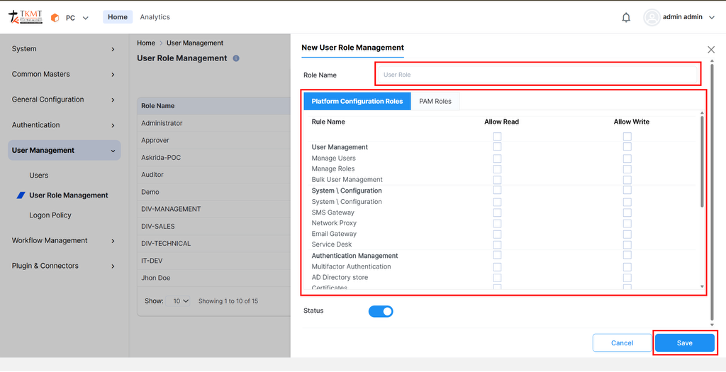
- In the Role Name field, enter a unique and descriptive name for the role.
- Select the permissions to be assigned to the role based on the user’s required access and responsibilities.
- Click Save to create the role.

Click Save to confirm and create the new role